Overview
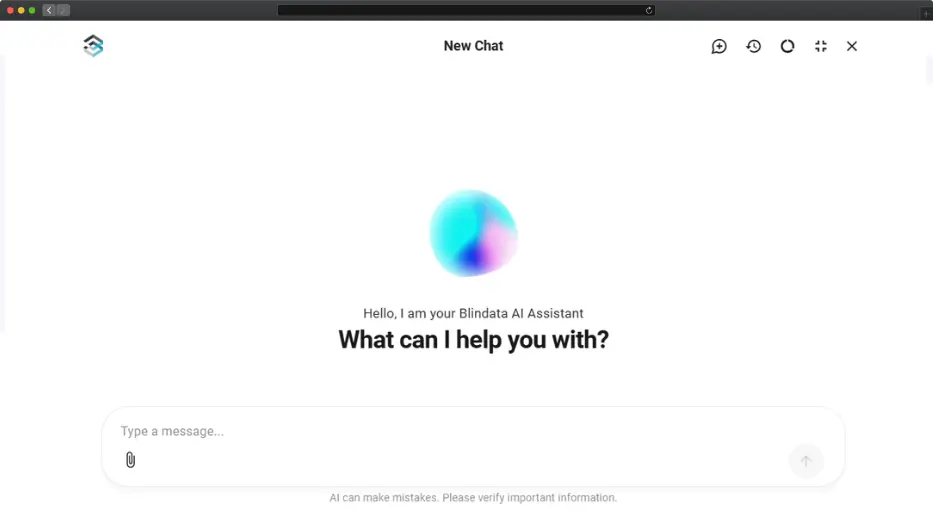
The Blindata AI Assistant is the in-app chat for day-to-day governance, ideal for data stewards, catalog owners, and business users who want to work in natural language without leaving Blindata.
We designed it as a real assistant, not only a chatbot for discovery or a way to chat with your data. It comes with the full set of skills a data professional needs day to day, from drafting ontologies and enriching the catalog to building lineage and quality checks, so it can genuinely take on the work rather than just point you toward it.
Features
From writing definitions to answering business questions, the assistant takes on the everyday work that usually slows teams down. It always proposes, never decides on its own: you see exactly what it suggests and choose what to keep.
Create & edit ontologies
Draft concepts, attributes, namespaces, and relationships in the Business Glossary, or review and deduplicate existing terms.
Update the Data Catalog
Register systems, tables, and columns. Improve descriptions, visibility notes, and stewardship metadata at scale.
Link business to technical
Connect catalog assets to Business Glossary meaning through semantic linking, so columns like customer_id point to the Customer concept your business already defined.
Chat with Your Data
Ask business questions in natural language and get answers as tables or charts, grounded in the ontologies your organization already trusts.
Explore & trace lineage
Understand where data comes from, how it flows, and when metadata supports it, get SQL based on verified table and column names.
Create quality checks
Draft checks that verify completeness, consistency, or alignment with source systems, then review and refine them before they go live.
How to
Want the full walkthrough on interface, chat history, and usage limits? See the Blindata AI Assistant guide in the Help Center.
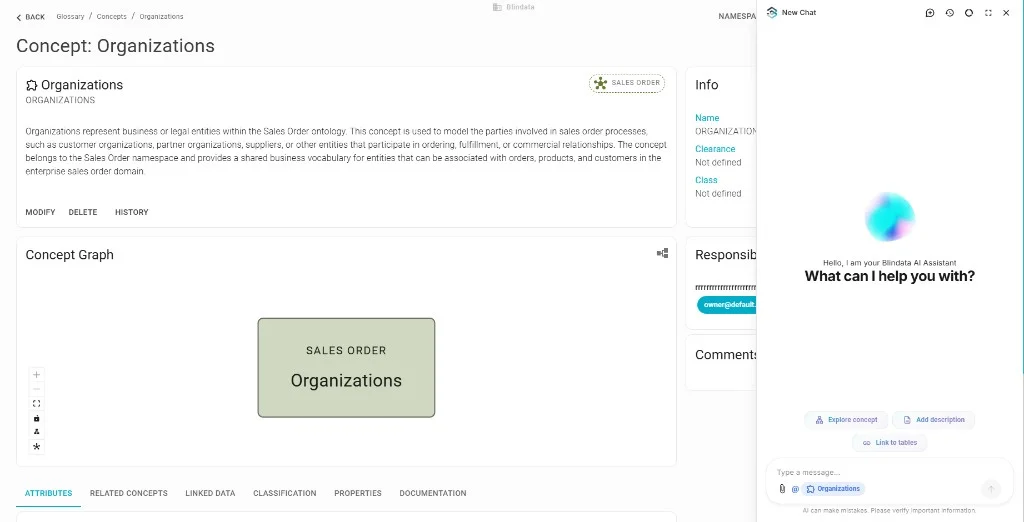
Click the sparkle icon in the top-right toolbar of Blindata. The assistant opens as a sidebar on the right, so the page you were working on stays visible next to the conversation. Switch to fullscreen when a task needs more room, for example reviewing a long list of suggested terms.
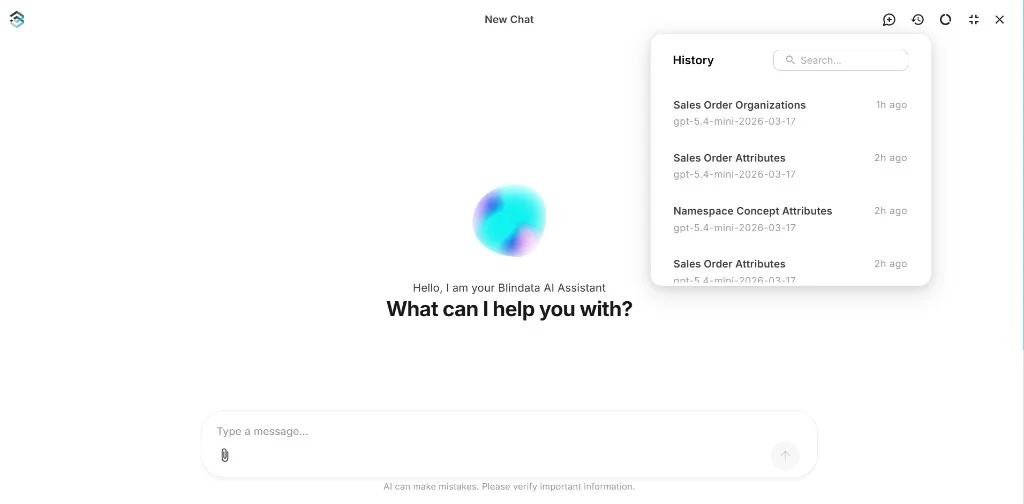
Every conversation is saved. Reopen the history panel to pick up where you left off, rename a thread to find it later, or start a fresh one when you move on to a different task. From the same toolbar you can also check daily token usage when you need to see how much capacity you have left.
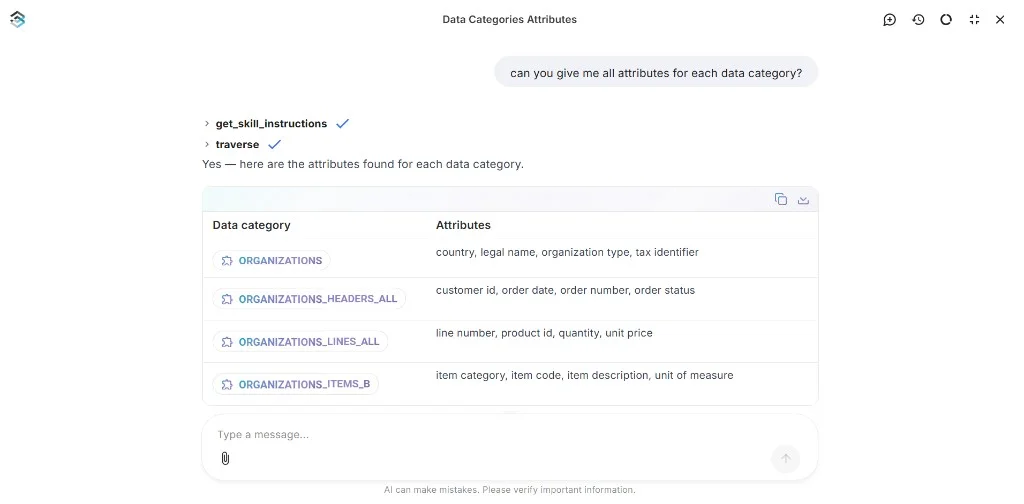
Describe the outcome you want rather than the steps to get there. The assistant works out which parts of your metadata to look at and tells you what it checked along the way, so you can follow its reasoning instead of taking the answer on trust.
Typical requests sound like:
- “Which tables contain customer email addresses?”
- “Draft a glossary concept for Active Customer and link it to the sales tables.”
- “Analyze this script and create the lineage between the source and target tables.”
- “Help me create a quality check that verifies alignment between this table and its ERP source.”
- “Create an ontology namespace for customer support based on this drawing attached.”
Follow-up questions work too: refine, correct, or narrow a previous answer without repeating the whole request, and the assistant replies in the language you write in.
Ask for the numbers you need, for example “sales by store last quarter”. The assistant uses the definitions in your Business Glossary and Data Catalog to propose a query, which you review before it runs under your own identity. Results return in the conversation as a table or chart.
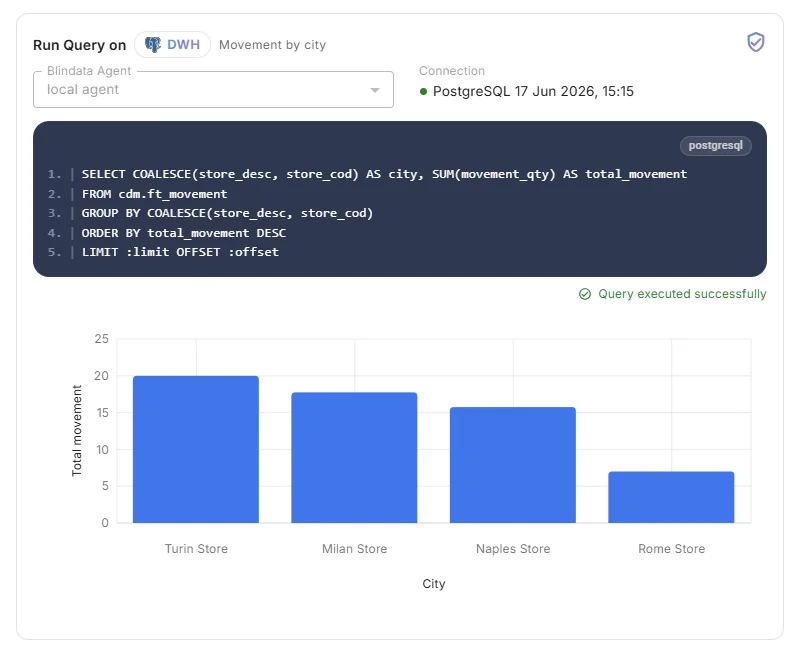
Existing database permissions continue to apply, and results remain private to the person who asked. See the Chat with Your Data guide for setup.
On a glossary, catalog, or data product page, the assistant picks up the resource you are viewing and shows it as a chip in the input, so you can ask about this asset without retyping names. Use @ to mention other resources, or dismiss the chip for a general question.

On supported pages, pick a one-click shortcut above the input, for example Explore concept, Suggest links, or Model from document. The assistant fills in the prompt; you review and steer from there.
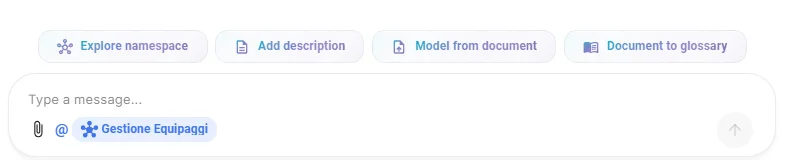
Upload a policy PDF, data model image, specification, or CSV export to give the assistant additional context. Tell it what you want to create or update, then review the drafts it produces in the same conversation.
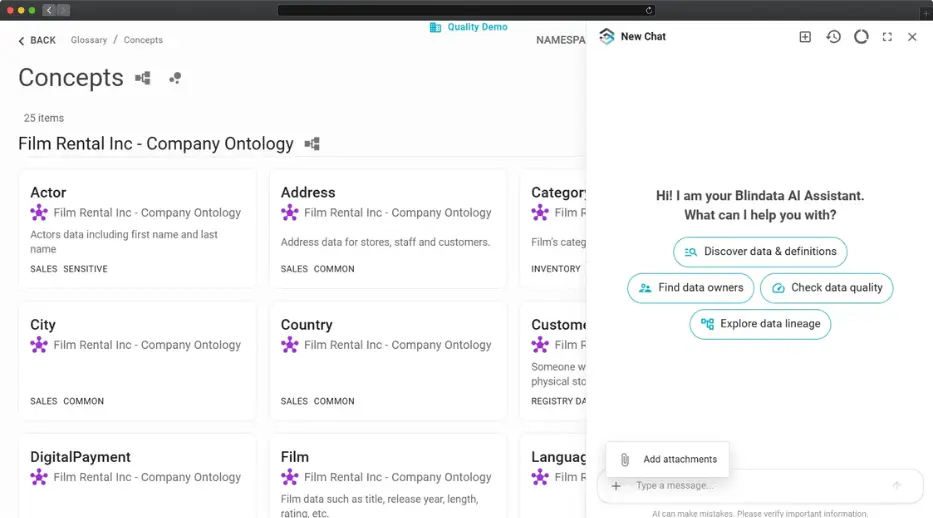
Whenever the assistant creates or updates something, it lists the assets involved as cards you can click: glossary concepts, tables and columns, data products, systems, and more. Open them to check names, descriptions, and relationships against what your organization already agreed on.
Nothing is applied silently, so you can ask for a correction, narrow the scope, or discard a suggestion entirely before anything is saved. Treat the assistant as a fast first draft and yourself as the reviewer who signs it off.